Thursday, March 15, 2018

USA news on Youtube Mar 15 2018

During the first half of March, two major war exercises are underway

- one in the Mediterranean off the coast of Sicily,

the other in Israel - both led and supported

by USA/NATO commands and bases in Italy.

At the Dynamic Manta 2018- a submarine war exercise, supported by the Sigonella and Augusta bases

and the port of Catania in Sicily - naval forces from the United States,

Canada, Italy, France, Belgium, Germany, Great Britain, Spain, Greece and Turkey

participate with 5,000 men, surface ships, sub-marines, airplanes and helicopters.

The exercise is led by the NATO Command headquartered in Lago Patria (JFC Naples),

under the command of US Admiral James Foggo.

Appointed by the Pentagon as his predecessors, at the same time Admiral James Foggo commands

the U.S. Naval Forces Europe and U.S. Naval Forces Africa,

whose headquarters are in Naples Capodichino.

The purpose of the Dynamic Manta 2018 is explained by Admiral Foggo:

the USA is fighting the "Fourth Battle of the Atlantic", after those of the two World Wars and the Cold War.

It is fought against "increasingly sophisticated

Russian submarines that threaten the sea lines of communication

between the United States and Europe".

The Admiral accuses Russia of conducting "an increasingly aggressive military activity",

citing as an example the Russian fighters flying over US ships.

However, he does not say that these warships operate in the Baltic and Black Sea

near the Russian territory.

At the same time the US Global Hawk drones, taking off from Sigonella,

fly two or three times a week along the Russian coasts on the Black Sea.

Wearing the NATO captain's hat, Admiral Foggo prepares Allied naval forces in Italy against Russia.

Wearing the US captain's hat,

he sends the Sixth Fleet from Italy to Juniper Cobra 2018,

a US-Israeli joint operation mainly directed against Iran.

From the base of Gaeta, Mount Whitney, the flagship of the Sixth Fleet,

arrived in Haifa, accompanied by the amphibious assault ship Iwo Jima.

The Mount Whitney is a floating headquarters,

connected to the global command also through the MUOS station of Niscemi.

The Juniper Cobra 2018 - which involves 2,500 US soldiers and as many Israelis -

and as many Israelis - began on March 4, while Premier Netanyahu, meeting with President Trump,

claimed that Iran "has not renounced its nuclear ambitions"

(not saying it is Israel the only nuclear power in the Middle East)

and concluded "Iran must be stopped, this is our common job".

The exercise simulates the Israeli response to the simultaneous launch of missiles from Lebanon, Iran, Syria and Gaza.

The real scenario may instead be that of a missile launch

falsely attributed to the Lebanese Hezbollah allied with Iran,

as a pretext to attack Lebanon by targeting Iran. mirando all'Iran.

Just 72 hours later - US and Israeli officials declare - US forces would arrive from Europe

(in particular from bases in Italy) to join the Israeli forces in the war.

The presence at Juniper Cobra 2018 of General Curtis Scaparrotti,

head of the European Command of USA, confirms this plan,

which he defined at a meeting with the Israeli general staff on 11 March.

Since Scaparrotti is also the Supreme Allied Commander in Europe

(a position that always belongs to a US general), the plan foresees a NATO participation, above all Italian,

to support Israel in a large-scale war

in the Middle East.

Author: Manlio Dinucci

For more infomation >> L'Arte della Guerra - L'Italia nella morsa Usa/Nato (EN/PT/FR) - Duration: 9:30.

-------------------------------------------

Winding a 3D Printing Filament Spool with Junk Drawer Parts - Duration: 2:01.

I have one of these fiberology empty spools and it looks like a great spool

for the spool racer but I needed two of them. I want to put two in the back. So I

did have a second spool but it still had filament on it so I grabbed an empty

spool wrapped it around the empty spool and started winding my hand but I could

see this was gonna take forever. I went through my junk drawer and I found these

two brackets from hanging electrical fixtures. And I had a piece of threaded

rod that I cut off the axle of the spool racer so I grabbed a couple nuts screwed

it on and I had to screw it on from one end because it was still cut and rough on

the other end. So I put a nut on and then I slid the bracket in and put this

through the spool the empty spool then I grabbed a second bracket put it on

the other side and another nut, and tightened this by hand and then tried to

center it and then I got two wrenches and tightened it up so it pinched the

spool between them.

Once I got those tightened up I lined up the two spools then I got my drill and I

clamped the drill down on to the threaded rod I just did this by hand and

then started spinning it. And I could feel already this was working great I

just kept my hand on the back spool to keep pressure and then I just spun it

until actually it spun through the nut. So I needed to put a second nut on the

threaded rod to lock this thing from unthreading itself. Once I got those two

nuts locked against each other I put it back on the drill and went to

town. The only thing is it marked up my bench I didn't realize the black spool

was making a ton of marks and I'm gonna have to clean up but there was all

finished and I now have my second spool for the spool racer. This episode is

sponsored by my awesome patreon supporters! Watch for part two of

updating the spool racer

For more infomation >> Winding a 3D Printing Filament Spool with Junk Drawer Parts - Duration: 2:01.

-------------------------------------------

2018 Koch Memorial Scholarship - Duration: 1:25.

I always wanted to work with animals since I was 8.

I started my volunteering at vet clinics, at horse farms, dairy farms.

I graduated last night with a bachelor of science in zoology.

Now I am applying for zoo keeper jobs.

When I was accepted to Michigan State Lyman Briggs,

Freshman year was a little scary seeing as MSU is such a big university.

My dad told me about the RCPD and I was completely against it.

I did not want special treatment at all, and RCPD explained that it is not special treatment.

It is to help level the playing field.

You have just as much opportunity

as the other students to do as well as you can in your classes.

I didn't know they had scholarships until after my freshman year.

I applied to a couple of them and got the Koch Foundation scholarship.

It is a relief to have the financial support because that is less money out of my loans.

I would like to thank my parents for always being there,

my advisers here at Briggs,

RCPD, Virginia, she was a great ally

and I would not have been able to make it without her and without her help.

For more infomation >> 2018 Koch Memorial Scholarship - Duration: 1:25.

-------------------------------------------

Setting up Your Wireless Canon PIXMA TS8120- WiFi Protected Setup with a Mac - Duration: 7:25.

[Music]

In this video, we'll cover how to set up your Canon PIXMA printer on a wireless

network using a Mac and Wi-Fi Protected Setup or WPS. Let's get started!

Before connecting your printer to the network, confirm that your wireless router is

available and properly set up. Also, confirm that your computer is connected to the network.

First, make sure your printer is plugged in and turned on.

The main screen will be lit up when the printer is on.

Tap the Wi-Fi icon at the bottom left of the screen.

Tap LAN settings.

Next, tap Wireless LAN.

Now, tap Wireless LAN setup.

Then, tap WPS (Push button method).

On the WPS confirmation screen, tap OK

You may see a button that looks like this on your wireless router.

For more details on the location of the WPS button on your router, refer to the router's manual.

Now, press and hold the WPS button on your wireless router.

This must be done within two minutes of activating WPS on your printer.

Then, tap OK.

When you see this screen, tap OK.

Now, let's install the software.

On your Mac, download the installation files from the Canon website by visiting,

ij.start.canon

Follow these links to download the software for your printer.

Open the downloaded file on your Mac to get started.

Click Open to start the installation process.

Click Next.

When prompted, enter the administrator name

and password you used to setup your Mac, and then click Install Helper.

Click on Start Setup.

The installation program will attempt to acquire information

about the latest drivers and software updates. This may take several minutes.

Select your place of residence, and click Next.

The License Agreement screen will be displayed.

Click Yes to continue the installation.

An Extended Survey Program screen will appear.

This optional program is used for the development and

marketing of Canon products so they will better meet our customer's needs.

If you agree to participate in the Extended Survey Program, click Agree.

If you click Do Not Agree, the Extended Survey Program will not be installed.

On the Check the Connection Methods screen, click Yes to continue

with the wireless setup.

A box will appear asking for access to the Wi-Fi

password in your keychain. If you didn't save your password to your

keychain, you'll need to enter it to continue. Click allow to proceed.

When the Add Printer box appears, click Add Printer.

Highlight your printer from the list.

Be sure to select the printer listed with Bonjour Multifunction in the Kind column.

Also, be sure that Secure Airprint is listed in the Use drop down menu.

Then, click Add.

Once the printer is added, click Next.

When the Print Head Alignment screen appears, click Next.

Now, the Test Print window is displayed.

If you would like to make a test print, load plain paper into the printer.

Then, click Start.

After test printing, click Next. You can skip test printing by simply clicking Next.

Your printer is now connected to your computer.

Now, the software will be installed. click Next.

A list of applications will appear. Make sure that the software you want to install is selected

And then click Next.

The software will now be installed. this may take several minutes.

On this screen, you can get instructions on how to set up a mobile

device, such as a smartphone or tablet. Click Next.

At this time, you'll be prompted to register your product. If you choose to register at this time a

new window will open. After registration is complete you can continue with the installation.

If you would like to create a shortcut for the online manual, you can

do so here. Select an option, then click Next.

When this screen appears, click Exit to complete the installation.

Congratulations! This completes the setup of your Canon

PIXMA printer to a wireless network, using a Mac and WPS. Now you are ready to print or scan.

For help with connecting your printer to a Windows computer,

Android, or iOS device, please visit our YouTube channel for more videos.

Thank you for watching!

For more infomation >> Setting up Your Wireless Canon PIXMA TS8120- WiFi Protected Setup with a Mac - Duration: 7:25.

-------------------------------------------

Setting up Your Wireless Canon PIXMA TS3122- Easy Wireless Connect with an Android Device - Duration: 3:37.

[Music]

In this video, we'll cover how to set up your Canon PIXMA Printer on a wireless

network with a compatible Android™ device using the Easy Wireless Connect Method. Let's get started!

Before connecting your printer to the network,

confirm that your wireless router is available and properly set up.

Also, confirm that your mobile device is connected to the network.

First, make sure your printer is plugged in and turned on. The green light next to the power button.

will be lit when the printer is on.

Now, check your printer. If the power light is flashing, press the Stop button.

Next, press and hold the Direct button until the icon starts to flash.

The printer will enter Easy Wireless Connect Mode.

Now let's download the Canon PRINT app on your Android™ device.

Find and tap the Google Play Store icon.

In the search box, type Canon PRINT,

then tap Search.

Then tap install and complete the installation.

Now, let's open the Canon PRINT app.

This message will appear if you've not previously registered a printer with the app.

Tap Yes.

On the next screen, tap the name of your printer listed on the screen.

Confirm the name of your wireless router when it appears, and then tap Yes.

Enter the password for your wireless router

and tap OK.

The network settings will be sent to the printer.

When this message appears, tap OK.

Verify the printer is detected. Tap the name of your printer when it appears.

This will select and connect the printer with your device.

Tap OK.

If you'd like to test print using images from your device, tap Select Images.

Congratulations! This completes the setup of your Canon PIXMA printer to your Android™ device using the

Easy Wireless Connect method. Now you are ready to print or scan.

For help with connecting your printer to a Mac, Windows® computer, or an iOS device, please visit

our YouTube channel for more videos. Thank you for watching!

For more infomation >> Setting up Your Wireless Canon PIXMA TS3122- Easy Wireless Connect with an Android Device - Duration: 3:37.

-------------------------------------------

Setting up Your Wireless Canon PIXMA TS3122- Easy Wireless Connect with an iOS Device - Duration: 3:59.

[Music]

In this video, we'll cover how to set up your Canon PIXMA printer on a wireless

network with a compatible iOS device such as an iPhone or iPad, using the Easy

Wireless Connect method. Let's get started!

Before connecting your printer to the network, confirm that your wireless router is available and

properly set up. Also, confirm that your mobile device is connected to the network.

First, make sure your printer is plugged in and turned on. The green light

next to the power button will be lit when the printer is on.

Now, check your printer. If the power light is flashing press the stop button.

Next, press and hold the Direct button until the icon starts to flash.

The printer will enter Easy Wireless Connect mode.

Now let's download the Canon print app on your iOS device.

Find and tap the App Store icon.

Tap Search.

In the search box, type Canon PRINT,

then tap search.

When you see this screen tap Get

Then continue the download and installation process.

On your iOS device go to Settings.

Select Wi-Fi®.

And then connect to the network created by your Canon Printer.

Now, let's open the Canon PRINT app.

Check to see if your printer appears at the top of the screen. If it does, the setup is complete.

If not, tap the Add Printer icon.

Tap Register Printer.

Tap OK.

Next, tap Auto Select Connection Method.

Select the name of the wireless router you would like to use.

Enter the password for your wireless router,

and tap OK.

The network settings will be sent to the printer.

When this message appears, Tap OK.

Verify the printer is detected. Tap the name of your printer when it appears.

This will select and connect the printer with your device.

Tap OK.

If you'd like to test print using images from your device, tap Select Images.

Congratulations! This completes the setup of your Canon PIXMA printer to your iOS device using the

Easy Wireless Connect method. Now you are ready to print or scan.

For help with connecting your printer to a Mac, Windows® computer, or Android™ device, please visit

our YouTube channel for more videos. Thank you for watching!

For more infomation >> Setting up Your Wireless Canon PIXMA TS3122- Easy Wireless Connect with an iOS Device - Duration: 3:59.

-------------------------------------------

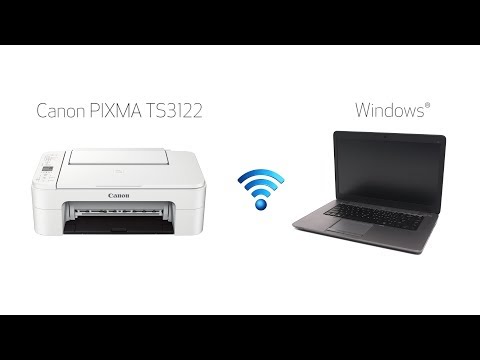
Setting up Your Wireless Canon PIXMA TS3122- Easy Wireless Connect with a Windows Computer - Duration: 6:40.

[Music]

In this video, we'll cover how to set up your Canon PIXMA printer on a wireless

network using the Easy Wireless Connect method on a Windows® computer. Let's get started!

Before connecting your printer to the network, confirm that your

wireless router is available and properly set up. Also, confirm that your computer is connected to the network.

First, make sure your printer is plugged in and turned on.

The green light next to the power button will be lit when the printer is on.

Now, check your printer. If the power light is flashing, press the Stop button.

Next press and hold the Direct button until the icon starts to flash.

The printer will enter easy Wireless Connect Mode.

Now let's install the software.

Insert the bundled CD-ROM that came with your Canon PIXMA printer into your

computer or download the installation files from the Canon website by visiting

ij.start.canon

Follow these links to download the software for your printer.

Open the downloaded file on your computer to get started.

Click on Start Setup.

The installation program will attempt to acquire

information about the latest drivers and software updates. This may take several minutes.

Select your place of residence, and click Next.

The License Agreement screen will be displayed. Click yes to continue with the installation.

An Extended Survey Program screen will appear. This optional program is used for the development and

marketing of Canon products so they will better meet our customer's needs. If you

agree to participate in the Extended Survey Program, click Agree. If you click

Do Not Agree, the Extended Survey Program will not be installed.

If you have security software on your computer you may see this screen.

Verify there is a check in the box next to "Deactivate the block", and click Next.

On the Check the Connection Method screen, click Yes to continue with the wireless set up.

The software setup may detect your wireless router's capabilities and

display this screen. Select your wireless router and enter your wireless network password,

then click Next.

The network connection is temporarily disabled during setup. This may take several minutes.

When you see the connection completed screen, click Next.

Now the drivers will be installed. This may take several minutes.

Next, the Print Head Alignment screen will be displayed.

Load plain paper into the printer.

Click printhead alignment, then click Start and follow the on-screen instructions.

When the Print Head Alignment is complete, click Next.

Now the test print window is displayed. If you would like to make a test print, click Start.

After test printing, click Next. You can skip test printing by simply clicking Next.

Your printer is now connected to your computer. If this is your default

printer make sure the "Set as default printer" box is checked.

Now the software will be installed. Click Next.

A list of applications will appear. Click Next.

The software will now be installed. This may take several minutes.

On this screen, you can get instructions on how to set up a mobile device such as

a smartphone or tablet. Click Next .

At this time you'll be prompted to register your product. If you choose to register at this time, a new window will open.

After registration is complete you can continue with the installation.

When this screen appears, click Exit to complete the installation.

Congratulations! This completes the setup of your Canon PIXMA printer

to a Windows® computer using the Easy Wireless Connect method.

Now you are ready to print or scan.

For help with connecting your printer to a Mac, Android™, or iOS device, please visit our YouTube channel for more videos.

Thank you for watching!

For more infomation >> Setting up Your Wireless Canon PIXMA TS3122- Easy Wireless Connect with a Windows Computer - Duration: 6:40.

-------------------------------------------

Setting up Your Wireless Canon PIXMA TS3122- Easy Wireless Connect with a Mac - Duration: 7:12.

[Music]

In this video, we'll cover how to set up your Canon PIXMA printer on a wireless

network using the Easy Wireless Connect method on a Mac. Let's get started!

Before connecting your printer to the network, confirm that your wireless router is

available and properly set up. Also, confirm that your computer is connected to the network.

First, make sure your printer is plugged in and turned on.

The green light next to the power button will be lit when the printer is on.

Now, check your printer. If the power light is flashing, press the Stop button.

Next, press and hold the Direct button until the icon starts to flash.

The printer will enter Easy Wireless Connect mode.

Now, let's install the software.

On your Mac, download the installation files from the Canon website by visiting:

ij.start.canon

Follow these links to download the software for your printer.

Open the downloaded file on your Mac to get started.

Click open to start the installation process.

Click Next.

When prompted, enter the administrator name and password you used to set up your Mac and then click Install Helper.

Click on Start Setup.

The installation program will attempt to acquire information

about the latest drivers and software updates. This may take several minutes.

Select your place of residence, and click Next.

The License Agreement screen will be displayed. Click Yes to continue the installation.

An Extended Survey program screen will appear. This optional program is used for the development and

marketing of Canon products so they will better meet our customer's needs. If you

agree to participate in the Extended Survey Program, click Agree. If you click

Do Not Agree, the Extended Survey Program will not be installed.

On the Check the Connection Method screen, click Yes to continue with the Easy Wireless Setup.

The software setup may detect your wireless router's capabilities and display this screen.

Select your wireless router and enter

your wireless network password, then click Next.

The network connection is temporarily disabled during setup. This may take several minutes.

A box will appear asking for access to the Wi-Fi® password in your keychain. If you didn't

save your password to your keychain, you'll need to enter it to continue.

Click Allow to proceed.

When you see the Connection completed screen, click Next.

When the Add Printer box appears, click Add Printer.

Highlight your printer from the list. Be sure to select the printer listed with Bonjour Multifunction in the

kind column. Also be sure that Secure Airprint is listed in the Use drop down menu.

Then click Add.

Once the printer is added, click Next.

When the Print Head Alignment screen appears, click Next.

Now the Test Print window is displayed. If you would like to make a test print, load plain paper into the printer.

Then click Start.

After test printing click Next. You can skip test printing by simply clicking Next.

Your printer is now connected to your computer.

Now the software will be installed.

Click Next.

A list of applications will appear. Make sure that the software you want to install is selected.

And then click Next.

The software will now be installed this May take several minutes.

On this screen, you can get instructions on how to set up a mobile device, such as

a smartphone or tablet. Click Next.

At this time you will be prompted to register your product. If you choose to

register at this time a new window will open. After registration is complete you

can continue with the installation.

If you would like to create a shortcut for the online manual, you can do so here.

Select an option, then click Next.

When this screen appears, click Exit to complete the installation.

Congratulations! This completes the setup of your Canon PIXMA printer to a Mac

using the Easy Wireless Connect method. now you're ready to print or scan.

For help with connecting your printer to a Windows® computer, Android™, or iOS device,

please visit our YouTube channel for more videos. Thank you for watching!

For more infomation >> Setting up Your Wireless Canon PIXMA TS3122- Easy Wireless Connect with a Mac - Duration: 7:12.

-------------------------------------------

Setting up Your Wireless Canon PIXMA TS6120 - WiFi Protected Setup with a Mac - Duration: 7:03.

[Music]

In this video, we'll cover how to set up your Canon PIXMA printer on a wireless

network using a Mac and Wi-Fi Protected Setup or WPS. Let's get started!

Before connecting your printer to the network, confirm that your wireless router is

available and properly set up. Also, confirm that your computer is connected to the network.

First, make sure your printer is plugged in and turned on.

The main screen will be lit up when the printer is on.

Tap the Wi-Fi icon at the bottom left of the screen.

Tap LAN settings.

Next, tap Wireless LAN.

Now, tap wireless LAN setup.

Then tap WPS (Push button method).

On the WPS confirmation screen tap OK

You may see a button that looks like this on your wireless router.

For more details on the location of the WPS button on your router, refer to the router's manual.

Now press and hold the WPS button on your wireless router.

This must be done within two minutes of activating WPS on your printer.

Then, tap OK.

When you see this screen, tap OK.

Now, let's install the software.

On your Mac download the installation files from the Canon website by visiting,

ij.start.canon

Follow these links to download the software for your printer.

Open the downloaded file on your Mac to get started.

Click Open to start the installation process.

Click Next.

When prompted, enter the administrator name

and password you used to setup your Mac, and then click Install Helper.

Click on Start Setup.

The installation program will attempt to acquire information

about the latest drivers and software updates. This may take several minutes.

Select your place of residence, and click Next.

The License Agreement screen will be displayed.

Click Yes to continue the installation.

An Extended Survey Program screen will appear.

This optional program is used for the development and

marketing of Canon products so they will better meet our customer's needs.

If you agree to participate in the Extended Survey Program, click Agree.

If you click Do Not Agree, the Extended Survey Program will not be installed.

On the Check the Connection Methods screen, click Yes to continue

with the wireless setup.

A box will appear asking for access to the Wi-Fi

password in your keychain. If you didn't save your password to your

keychain, you'll need to enter it to continue. Click allow to proceed.

When the Add Printer box appears, click Add Printer.

Highlight your printer from the list.

Be sure to select the printer listed with Bonjour Multifunction in the Kind column.

Also, be sure that Secure Airprint is listed in the Use drop down menu

Then, click Add.

Once the printer is added, click Next.

When the Print Head Alignment screen appears, click Next.

Now, the Test Print window is displayed.

If you would like to make a test print, load plain paper into the printer.

Then, click Start.

After test printing, click Next. You can skip test printing by simply clicking Next.

Your printer is now connected to your computer.

Now, the software will be installed. click Next.

A list of applications will appear. Make sure that the software you want to install is selected,

and then click Next.

The software will now be installed. this may take several minutes.

On this screen, you can get instructions on how to set up a mobile

device, such as a smartphone or tablet. Click Next.

At this time, you'll be prompted to register your product. If you choose to register at this time a

new window will open. After registration is complete you can continue with the installation.

If you would like to create a shortcut for the online manual you can

do so here. Select an option, then click Next.

When this screen appears, click Exit to complete the installation.

Congratulations! This completes the setup of your Canon

PIXMA printer to a wireless network, using a Mac and WPS. Now you are ready to print or scan.

For help with connecting your printer to a Windows computer,

Android, or iOS device, please visit our YouTube channel for more videos.

Thank you for watching!

For more infomation >> Setting up Your Wireless Canon PIXMA TS6120 - WiFi Protected Setup with a Mac - Duration: 7:03.

-------------------------------------------

Setting up Your Wireless Canon PIXMA TS6120 - Manual Connect with a Windows Computer - Duration: 6:24.

[Music]

In this video we'll cover how to set up your Canon PIXMA printer on a wireless

network using the Manual Connect method on a Windows computer. Let's get started!

Before connecting your printer to the network confirm, that your wireless

router is available and properly set up. Also, confirm that your computer is

connected to the network.

First, make sure your printer is plugged in and turned on.

The main screen will be lit up when the printer is on.

When the screen is on, tap the Wi-Fi icon at the bottom left of the screen.

Tap LAN Settings.

Next, tap wireless LAN.

Now, tap Wireless LAN setup.

Then, tap Manual connect

Select the wireless router you would like to use.

When you see this screen, tap the input area.

Now, you will enter a passphrase, also known as an access key

or Wi-Fi network password. The Shift key will allow you to enter uppercase

letters, and the Symbol key in the lower left will allow you to enter numbers and

symbols. The password entry is case-sensitive.

Enter uppercase and lowercase letters to match your wireless router's password.

When you have finished entering your password, tap OK.

Tap OK again to connect to your wireless router.

When you see this screen, your printer is connected to your wireless router.

Tap OK.

Now, let's install the software.

Insert the bundled CD-ROM that came with your Canon PIXMA printer into your computer

Or download the installation files from the Canon website by visiting,

ij.start.canon

Follow these links to download the software for your printer.

Open the downloaded file on your computer to get started.

Click on Start Setup.

Select your place of residence, and click Next.

The License Agreement screen will be displayed. Click Yes to continue with the installation.

An Extended Survey Program screen will appear. This optional program is used for

the development and marketing of Canon products, so they will better meet our

customers' needs. If you agree to participate in the Extended Survey

program, click Agree. If you click Do not agree,

the Extended Survey Program will not be installed.

If you have security software on your computer, you may see this screen.

Verify there is a check in the box next to 'Deactivate the block', and click Next.

On the Check the Connection Method screen , click Yes to continue with the wireless setup.

Now, the drivers will be installed. This may take several minutes.

Next, the Print Head Alignment screen will be displayed. Click Next.

Now, the Test Print window is displayed.

If you would like to make a test print, load plain paper into the printer.

Then, click Start

After test printing click Next.

You can skip test printing by simply clicking Next.

Your printer is now connected to your computer.

If this is your default printer, make sure the Set as default printer box is checked.

Now, the software will be installed. Click Next.

A list of applications will appear. Click Next.

The software will now be installed. This may take several minutes.

On this screen, you can get instructions on how to set up a mobile device, such as a smartphone or tablet.

Click Next.

At this time you'll be prompted to register your product. If you choose to register at this time, a new window will

open. After registration is complete, you can continue with the installation.

When this screen appears, click Exit to complete the installation.

Congratulations! This completes the setup of your Canon PIXMA printer to a

wireless network, using a Windows computer and Manual Connect.

Now you're ready to print or scan.

For help with connecting your printer to a Mac, Android, or iOS device,

please visit our YouTube channel for more videos.

Thank you for watching!

For more infomation >> Setting up Your Wireless Canon PIXMA TS6120 - Manual Connect with a Windows Computer - Duration: 6:24.

-------------------------------------------

Setting up Your Wireless Canon PIXMA TS6120 - Manual Connect with a Mac - Duration: 7:23.

[Music]

In this video, we'll cover how to set up your Canon PIXMA printer on a wireless

network using the Manual Connect method on a Mac. Let's get started!

Before connecting your printer to the network, confirm that your wireless router is

available and properly set up. Also confirm that your computer is connected to the network.

First, make sure your printer is plugged in and turned on. The

main screen will be lit up when the printer is on.

When the screen is on, tap the Wi-Fi® icon at the bottom left of the screen.

Tap LAN settings.

Next, tap Wireless LAN .

Now, tap Wireless LAN setup.

Then, tap Manual connect.

Select the wireless router you would like to use.

When you see this screen, tap the input area.

Now you will enter a passphrase, also known as an access key

or Wi-Fi® network password. The Shift key will allow you to enter uppercase

letters, and the Symbol key in the lower left will allow you to enter numbers and

symbols. The password entry is case-sensitive.

Enter uppercase and lowercase letters to match your wireless router's password.

When you have finished entering your password, tap OK

Tap OK again to connect to your wireless router.

When you see this screen, your printer has connected to your wireless router. Tap OK.

Now let's install the software.

On your Mac, download the installation files from the Canon website by visiting,

ij.start.canon

Follow these links to download the software for your printer.

Open the downloaded file on your Mac to get started.

Click Open to start the installation process.

Click Next.

When prompted, enter the administrator name

and password you used to setup your Mac and then click Install Helper.

Click on Start Setup.

The installation program will attempt to acquire information

about the latest drivers and software updates. This may take several minutes.

Select your place of residence and click Next.

The License Agreement screen will

be displayed. Click Yes to continue the installation.

An Extended Survey Program screen will appear. This optional program is used for the development and

marketing of Canon products so they will better meet our customer's needs. If you

agree to participate in the Extended Survey Program, click Agree. If you click

Do Not Agree, the Extended Survey Program will not be installed.

On the Check the Connection Methods screen, click Yes to continue with the wireless setup.

A box will appear asking for access to

the Wi-Fi® password in your keychain. If you didn't save your password to your

keychain, you'll need to enter it to continue. Click Allow to proceed.

When the Add Printer box appears, click Add Printer.

Highlight your printer from the list. Be sure to select the printer listed with Bonjour Multifunction in the

kind column. Also, be sure that Secure Airprint is listed in the Use drop down menu. Then click Add.

Once the printer is added, click Next.

When the Print Head Alignment screen appears, click Next.

Now, the test print window is displayed.

If you would like to make a test print, load plain paper into the printer.

Then click Start.

After test printing, click Next.

You can skip test printing by simply clicking Next.

Your printer is now connected to your computer. Now the software will be installed. Click Next.

A list of applications will appear. Make sure that the software you want to install is selected.

And then click Next.

The software will now be installed. This may take several minutes.

On this screen you can get instructions on how to set

up a mobile device, such as a smartphone or tablet.

Click Next.

At this time you'll be prompted to register your product. If you choose to register at this time a

new window will open. After registration is complete you can continue with the installation.

If you would like to create a shortcut for the online manual, you can

do so here. Select an option then click Next.

When this screen appears, click Exit to complete the installation.

Congratulations! This completes the setup of your Canon PIXMA printer to wireless network

using a Mac and Manual Connect. Now you are ready to print or scan.

For help with connecting your printer to a Windows® computer, Android, or iOS device,

please visit our YouTube channel for more videos. Thank you for watching!

For more infomation >> Setting up Your Wireless Canon PIXMA TS6120 - Manual Connect with a Mac - Duration: 7:23.

-------------------------------------------

HPWA Volunteer Herring Counter Training - Duration: 3:32.

Hello, I'm Tess Goldman, a senior intern working as the social media/webmaster

assistant at the Herring Ponds Watershed Association, and today I'm going to tell

you how HPWA volunteers count herring going into the Herring Ponds Watershed.

To sign up to be a volunteer, first go to the herringpondswatershed.org, then on

the homepage click the link "Herring Count Sign-up". This will lead you to a

sign up page, and once you sign up you'll be contacted to schedule your times. The

herring count site is at the south end of Great Herring Pond. From Herring Pond

Road you will turn on to Black Pond Road in Bourne. Do not park at the Great Herring

Pond boat launch access site or on the Sandy Pond Road bridge. Instead a kind

HPWA member allows counters to park in her lower driveway at 5 Black Pond

Road. Once you have parked, look under the rhododendron bush for this camouflaged

container. This contains the clipboard with data sheets where all volunteers

record their counts. You will be able to see who was there before you and how

many herring, if any, they saw. Remember that even zero is a number for the

statistical analysis. Feel free to take the bucket with you to the count site

and even use it as a seat. Inside the container there are also other useful

items. These include polarized sunglasses, a

notebook, multiple clickers, and a timer. There is also a packet supplied with

Stewardship Guides and superhero herring comics to give out the passers-by that

stop to chat. Once you get to the bridge, position yourself on the north side.

Record the date and your initials in the designated columns. There is a rope tied

to a steel post with two attached thermometers, one in the air and one in

the water. Pull up the rope and quickly record both the air and water

temperatures in degrees centigrade. Then drop the thermometer back in the river

record the weather code in the designated column. Now pull out a clicker and

timer, or just use your phone as a timer. Set the timer to 10 minutes. Record your

start and end times using 24-hour or military format. Once the timer

starts, click the clicker every time you see a herring coming out from under the

bridge upriver towards the pond. Stop when the timer goes off and record that

number. If you see anything else of note, such as bird species, other fish, the

resident mink, or Woods Hole scientists, write it down on the datasheet in the notes

column. Once you are done, replace everything into the container, snap it

closed, and replace it in the rhododendron. Thank you very much for

volunteering to count herring with the Herring Ponds Watershed Association! To

learn more go to www.theherringpondswatershed.org, where you can also become a member. To learn why herring counts are important, you can watch this video featuring Sara Grady, South Shore Regional Coordinator, Massachusetts Bay National Estuary Program. by clicking the I in

the upper right hand corner of your screen. In the same way I've linked other

videos by the HPWA. If you have any questions, please email Ramona Krogman

at Ramiek99 at hotmail.com. Thank you for watching!

For more infomation >> HPWA Volunteer Herring Counter Training - Duration: 3:32.

-------------------------------------------

'BACKSTORY' short film (русские субтитры) - Duration: 8:00.

This -

is you -

and this is your story.

This is your first memory

and your second.

This is afternoons in the park

and seeing a horse for the first time.

And this is your sixth birthday.

This -

is when everything

was still in place.

But you get older

and older

And then your house burns down

and your parents fight

and your mother leaves

and from now on -

you're on your own.

And you go to school

and you get older

and older

and you fall in love.

And this is long summer days

that you thought would never end -

but they do -

and suddenly, your life

is about to start.

This is parties

and your first job

and this is girls

and more girls

and more loneliness -

and this is drugs.

This is friendship

and break-ups

and too much anger

until it all becomes too much.

But then,

on new year's eve,

you meet her.

And from this day on,

you don't feel alone anymore.

There was something about her

that felt different.

You travelled with her to new places

and you got closer with every year that passed.

But the time

keeps running -

and you get older.

And you move in together

and you make decisions.

And step by step -

everything goes faster.

This is a new house

and a better job

and pay raises

and going faster.

This is a new office

and a better car

and more meetings

and airports

and business lunches

and nights at the office

walks with your son -

family dinners -

and this is -

and all of a sudden -

you're on your own again.

This is the same way back to work.

And the same office.

And the same meetings.

And the same fake smiles.

This is a new wife

but no matter how hard you try

you just feel -

empty -

And you get older

and older

and older.

Until one day -

twenty years have passed.

But you keep going

and going

and every day is the same.

More hotel rooms

more tears

more meetings

more doctor's appointments

a divorce

and a surgery -

And you get weaker

and weaker

and weaker.

And then, one day

you'll be old.

And you'll be told that you have six more months to live.

And you'll need machines to help you breathe.

And then -

just like that -

your story ends.

And you will slowly start -

to let go -

And you will think about

how you first saw her on New Year's Eve

and how she looked at you -

how she always looked at you -

And then -

it will only be a few seconds -

until everything is gone.

No comments:

Post a Comment